CALC 1 Number Formatting Keys
The number formatting can be set in the Options.
To save time, CALC 1 has 4 formatting keys found on the bottom row when you tap shift.
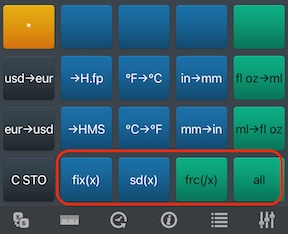
Figure 1: Number Formatting Keys on the CALC 1 keyboard
Examples
For the value of 12345.6789
fix(x)
This will set the formatting to fixed with the number of decimal places in the display.
x is rounded to a positive integer.
2, shift, fix(x) will display 2 decimal places.
12,345.68
Fixed formatting is a popular format for business and financial calculations.
sd(x)
This will set the formatting to x significant digits.
x is rounded to a positive integer.
- If x is positive, it sets the Minimum Digits switch to MAX (equal to x).
- If x is negative, it sets the Minimum Digits switch to 0.
4, shift, sd(x) will display 4 significant digits.
12,350
Significant digits formatting is a popular format for statistics and scientific calculations.
frc(/x)
This will set the formatting to fractional, with x as the Max Denominator.
x is rounded to a positive integer.
- For x = 2, 4, 8, 16, ..., 2048 (powers of 2 up to 2048):
- Sets Most Precise to NO (e.g., 1/4, 3/8, ...).
- Sets Fixed Denominator to NO.
- Picks a factor of the Max Denominator for the denominator.
- For other positive integers:
- Sets Most Precise to YES.
- This setting will calculate the most precise combination of numerator and denominator.
- For negative x:
- Sets Most Precise to NO.
- Sets Fixed Denominator to YES.
- Fixes the denominator to the absolute value of x.
Maximum allowed denominator is 4095.
16, shift, frc(/x) will display to the nearest 16th.
12,345 11/16
Here is a screenshot of the Fractions section of the Options for reference:
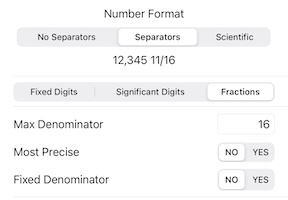
Figure 2: Fraction Format Options in CALC 1
Note: Using a negative value, such as -60, will always format values as n/60. This can be useful for dealing with calculations involving hours and minutes.
For -60, shift, frc(/x): 12,345.6789 would display as 12,345 41/60
all
- Digits is set to 12.
- The Minimum Digits switch is set to 0.
12,345.6789
This is a popular format for basic calculators without formatting options.
The Options page provides complete information on the formatting options. Users have full control over these settings and can customize them to their specific needs. For example, if you want a Max Denominator of 64 but with the Most Precise option set to YES, you can go to the Options page and adjust these settings individually.
Using the pinch gesture on the display will change the number of places for fix, sd and all formatting.