

Export & Sharing
Exporting and sharing completed games is a core benefit of Chess Score Pad. Chess Score Pad is designed not only to record games during play, but to make those games easy to archive, print, analyze, and share after the round.
What Chess Score Pad can generate
- PGN — a Portable Game Notation file, or PGN text copied to the clipboard, containing one or more games.
- PDF — a printable scoresheet with a board diagram.
- Notation text — the move notation exactly as shown on the Notation screen.
All export formats are provided through the standard iOS share sheet.
The Share action
Tapping the Share button opens the system iOS share sheet. The share sheet displays destinations based on the content type being exported (PGN, PDF, or text). Available destinations depend on the device, iOS version, and installed applications.
Common destinations include AirDrop, Messages, Mail, Notes, Copy (clipboard), Print, and Save to Files.
How exporting works
Chess Score Pad
      |
      v
   Share Button
      |
      v
 iOS Share Sheet
      |
      +-- AirDrop
      +-- Messages
      +-- Mail
      +-- Notes
      +-- Copy (Clipboard)
      +-- Print
      +-- Save to Files
Chess Score Pad does not send games directly to other apps. Instead, it provides the selected content to the iOS share sheet, and iOS shows only the destinations that can accept that type of content.
The iOS share sheet
The share sheet below highlights the items most commonly used with Chess Score Pad. Your share sheet may look slightly different depending on device and installed apps.
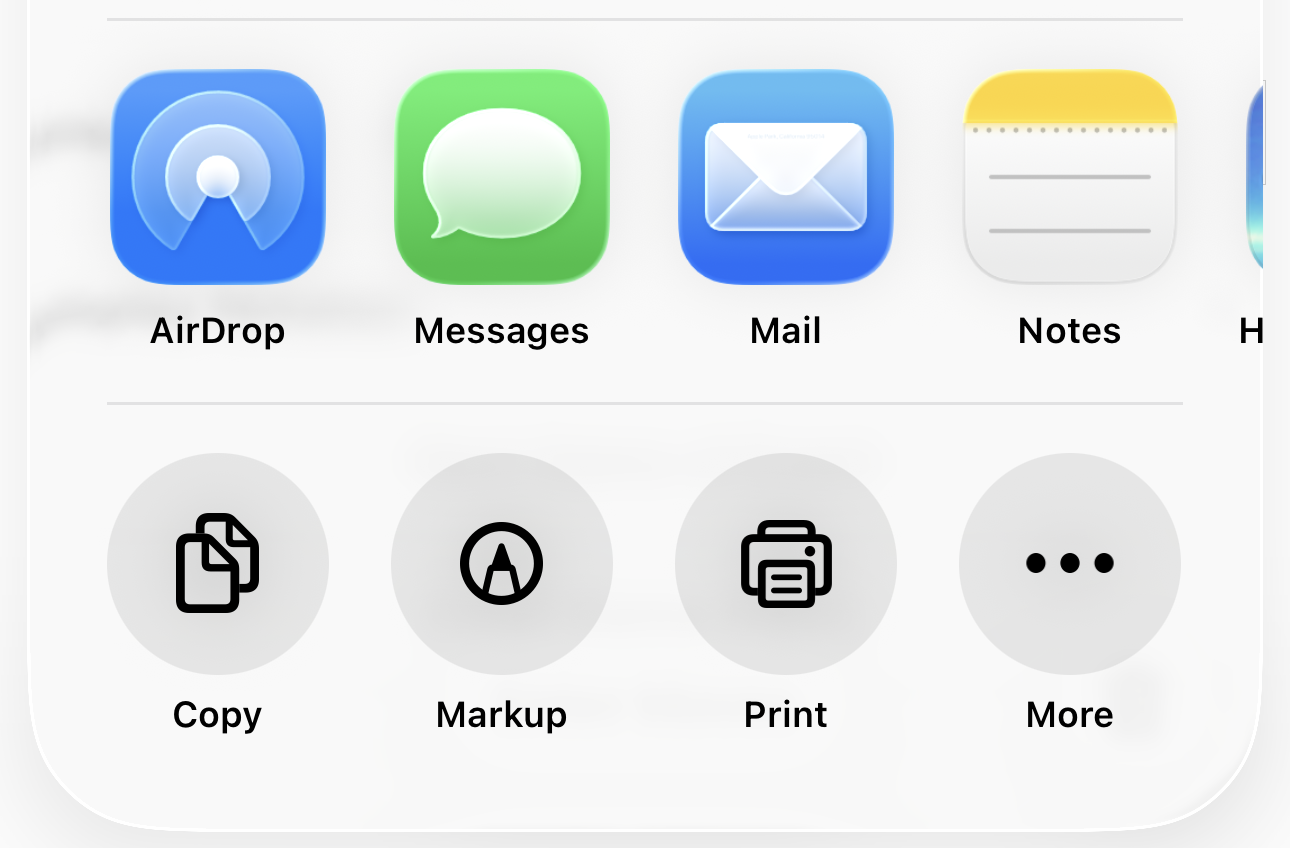
The iOS share sheet is provided by the system. Available destinations depend on the content type, device, iOS version, and installed apps.
What appears in the share sheet depends on what Chess Score Pad is exporting:
- PGN — shown as a file or as clipboard text. Typical destinations include Save to Files, AirDrop, Mail, and Copy.
- PDF scoresheet — shown as a printable document. The Print option is commonly used to save or sign the PDF.
- Notation text — shown as plain text. Typical destinations include Notes, Messages, Mail, and Copy.
Chess apps and PGN
Some iOS chess apps accept PGN files directly from Chess Score Pad using the share sheet. Other apps — including Chess.com — accept PGN by pasting from the clipboard. In these cases, choose Copy from the share sheet and then paste the PGN into the target app.
Using Print and Preview for signed scoresheets
The Print destination is especially useful for PDF scoresheets. Choosing Print does not require a printer. From the Print dialog you can save the PDF to Files, or send the PDF to the Preview app.
Using the Preview app (new to iOS 26), you can use Markup to sign the scoresheet digitally with a stylus or finger. If a tournament director accepts digital signatures, this provides a convenient paper-free workflow.
The PDF scoresheet
The PDF scoresheet contains a board position. You can choose which position is displayed on the Move Entry screen before exporting.
Export formats by screen
| Screen | What is exported | Notes |
|---|---|---|
| Games List | PGN for every game currently shown | Use filters (for example, by event name) to export all games from a single tournament. |
| Game Details |
PGN for the selected game PDF scoresheet |
The board position shown in the PDF can be set on the Move Entry screen before exporting. |
| Notation | Notation text as displayed | Exports only the visible text, including move numbers, annotations, and formatting. |
Email Game (html)
The Email Game (html) option on the Game Details screen is a legacy feature that predates iOS sharing. It generates a human-readable scoresheet and attached PGN using the system Mail composer.
This option is retained for compatibility but is no longer the recommended export method. For long-term reliability and flexibility, use the standard Share action instead.
Final note
The iOS sharing system allows Chess Score Pad to work seamlessly with other apps, letting each application do what it does best — printing, annotation, analysis, or storage.